How it works

From your client list to what to do next.

Seven steps. You keep the decisions and set every status; the workspace keeps track of the lists, the documents and the dates.

  1. 01Company
  2. 02Clients
  3. 03Requirements
  4. 04Documents
  5. 05Missing items
  6. 06Deadlines
  7. 07Next actions
01 · Company

Create your company’s workspace

Sign up with your work email, confirm it, and name your company. The workspace starts with a short checklist.

You
Create the account and name the company. The owner can correct the name later in Settings.
PrequalReady
Keeps your company’s data separate from every other company. One account holds one company workspace during early access.
The empty workspace of a new sample company: Getting started, with three steps: add a hiring client, confirm what the client asks for, upload each document once.
02 · Clients

Add each hiring client and its network

Every client that requires you to be qualified gets its own page, on ISNetworld, Avetta, Veriforce or another network.

You
Type the client’s name, pick its network and, if you like, the grade you see there today.
PrequalReady
Creates the client’s list of requirements from the items common on that network. It never reads or changes anything on the network itself.
The Add a hiring client form with the client name Northwind Midstream and the network ISNetworld selected.
03 · Requirements

Check the list against the client’s own

Items every client on a network shares, such as the questionnaire, insurance and injury statistics, are entered once for that network. Items only this client asks for are listed separately.

You
Remove what the client does not ask for, add what is missing, and set each item’s status and due date.
PrequalReady
Shows the source of every item and the date it was checked. Your client’s own list always wins.
The items shared across all ISNetworld clients: the questionnaire submitted, the insurance certificate accepted and expiring in 12 days, the EMR letter accepted, and safety statistics missing.
04 · Documents

Upload once, link to every client that needs it

A written program or a certificate often covers the same item for several clients. It lives once in your library and is linked wherever it is needed.

You
Choose the file (PDF, Word, PNG or JPG, up to 20 MB), add its expiry date, and keep “also use it for the same item in other clients” ticked.
PrequalReady
Stores the file privately, links it to every matching requirement, and keeps the older version when you upload a new one.
A document's Used for list: the Hazard Communication program is linked to the same requirement for three hiring clients.
05 · Missing items

See what is missing, per client

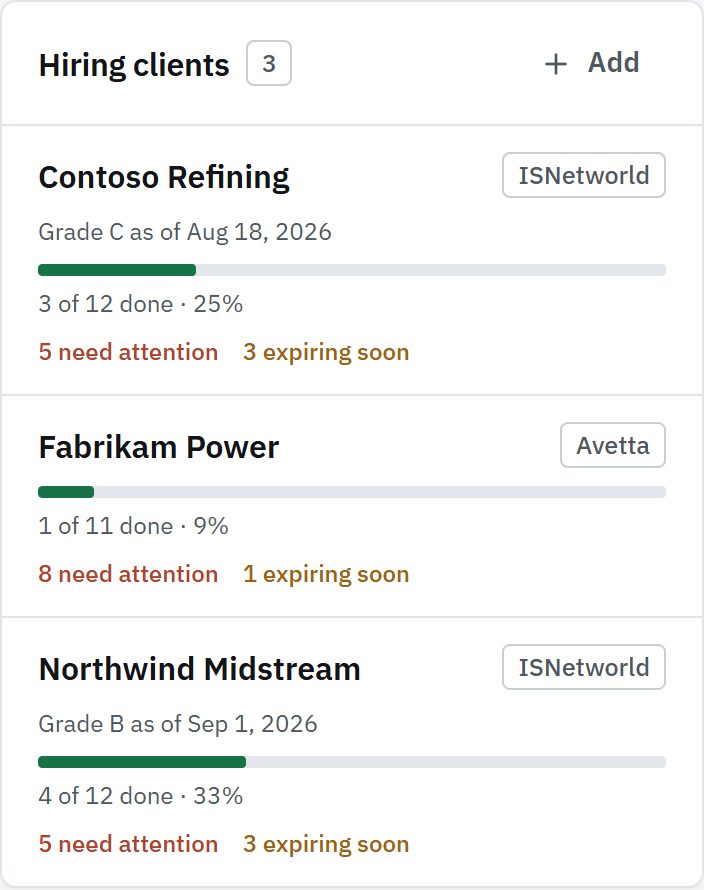
Each client shows its progress and the items that need attention: missing, rejected, expired or due soon.

You
Work through the gaps. Notes keep a reviewer’s comments next to the item.
PrequalReady
Counts what is done, what needs attention and what expires soon, from the statuses and dates you set.
The hiring clients list: Northwind Midstream, Contoso Refining and Fabrikam Power, each with a progress bar and counts of items that need attention.
06 · Deadlines

Every date in one list, and an email before it

Document expiries, the due dates you set, and yearly network dates such as the OSHA 300A posting and the Avetta annual update, grouped as past due, the next 30 days and later.

You
Add expiry dates and due dates when you know them. Turn reminders off in Settings if you do not want them.
PrequalReady
Checks the dates every day and emails the company owner 30, 14 and 3 days before each date, on the day, and once after. At most one email a day, never the same reminder twice.
The Next 30 days list: an Avetta form, an insurance certificate, an emergency action plan, training documentation and client-specific requirements, with their dates.
07 · Next actions

Know what to do first, across all clients

The workspace home answers one question: what needs us this week?

You
Work from the top: fix the rejected program, renew the certificate, prepare the form that is due.
PrequalReady
Ranks rejected, expired or overdue items first, then what expires or is due within 30 days, then what is missing. The same item for several clients reads as one line.
The What to do next list: a rejected Lockout/Tagout program first, then an Avetta form due in 9 days and an insurance certificate expiring in 12 days.
Today and with PrequalReady

The same work, in one place instead of five.

What you need to knowSpreadsheet, folders and calendarPrequalReady
What does this client require?A tab per client, copied by hand from the network.Adding a client fills its list with the items common on its network, each with its source. You remove what does not apply.
Where is the current version?Several folders, several copies, unclear which is current.One library with versions. One document is linked to every client that needs it.
What should we do first?Scan every tab and every reviewer email.One ranked list: rejected, expired or overdue first, then what is due within 30 days, then what is missing.
What expires next?Calendar entries, if someone added them.Every expiry and due date in one list, plus the OSHA 300A posting and the Avetta annual update.
Who reminds us?Whoever remembers.An email 30, 14 and 3 days before each date, on the day, and once after.
Limits

What it does, and what it does not do.

PrequalReady organizes your side of prequalification. The networks and your hiring clients make the decisions.

PrequalReady does

  • Keep each hiring client’s list of requirements, with sources
  • Store each document once, with versions and its expiry date
  • Link one document to every client that needs it
  • Rank what to do next across all clients
  • List every date and email reminders before it

PrequalReady does not

  • Connect to ISNetworld, Avetta or Veriforce. You submit there yourself.
  • Judge whether a document is compliant. Statuses are the ones you set.
  • Guarantee a grade, an approval or site access.
  • Write safety programs or questionnaire answers.
  • Offer several logins per company yet: one login during early access.
  • Back up files separately yet. Keep your own copies of important documents.

See it with a sample company, then try it with yours.

Free during early access. No card.